 Wise Penny
 Wise PennySign in
Refresh your AI assistant's tools list
Wise Penny adds new tools and capabilities over time. Most AI assistants don't pick these up automatically — they need a manual refresh. Do it whenever there's a new release to pick up, or if a tool ever seems missing or out of date.
When to do this
Your AI assistant caches the list of Wise Penny tools when you first connect it, and most assistants don't update that list on their own — they need a manual refresh.
We try not to change the tools constantly. Instead, we ship updates in occasional batches, each bundling several improvements together — so this is something you'll only need to do once in a while. Refresh when:
- A new batch of Wise Penny tools or features has shipped and you want it.
- Your assistant says a tool is missing, or a tool behaves unexpectedly.
- You just want to confirm you're on the latest set of tools.
Refreshing only re-reads the tool list — it doesn't touch your data, your circles, or your existing authorization.
In Claude
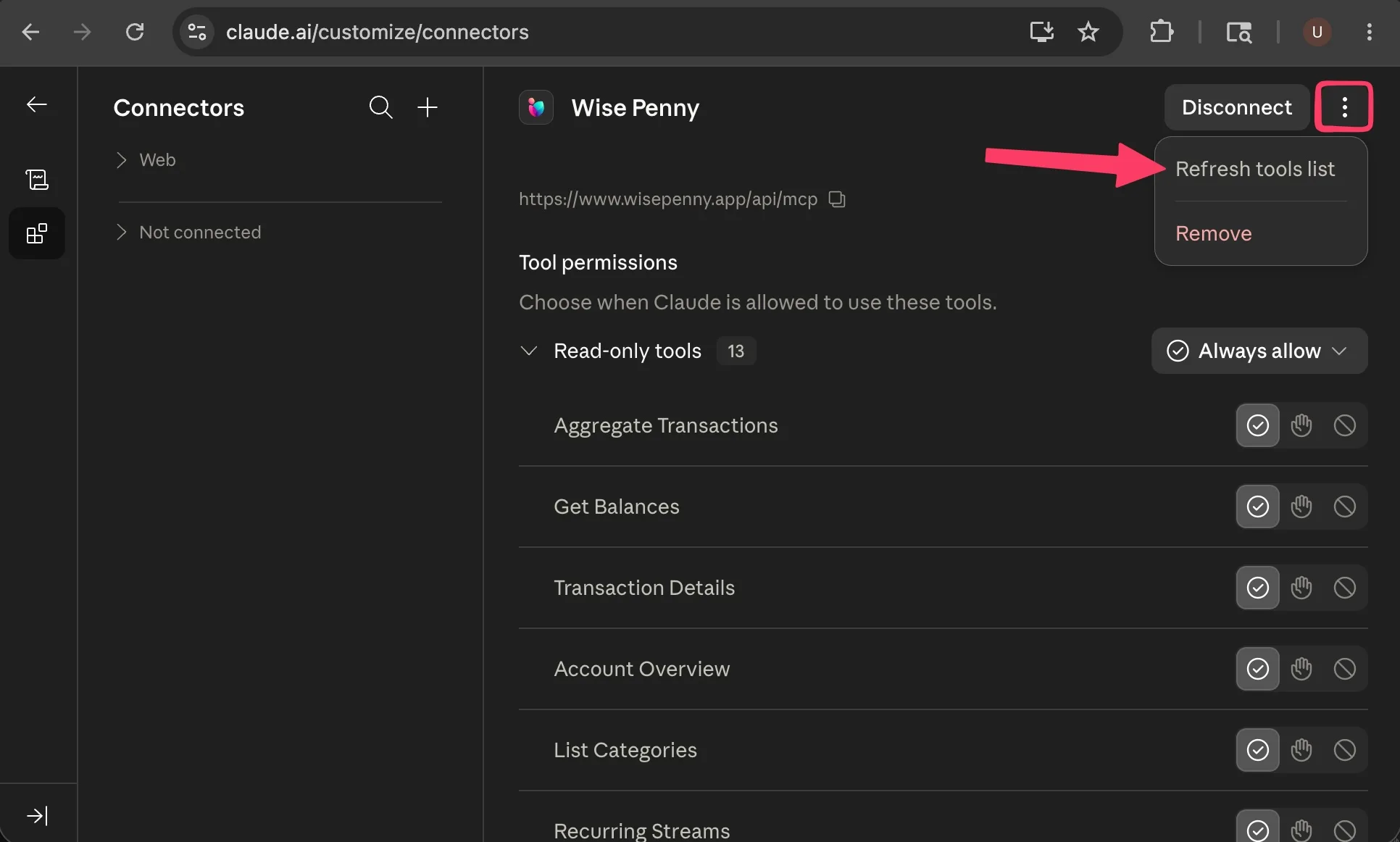
On the web, go straight to claude.ai/customize/connectors (or open claude.ai and go to Settings → Connectors). Click Wise Penny to open the connector, then:
Open the connector menu
Click the three-dot menu (⋮) in the top-right corner of the connector, next to Disconnect.
Choose Refresh tools list
Select Refresh tools list. Claude re-fetches the tools from Wise Penny, and any new ones appear in the Tool permissions list below — check that each one's permission is set the way you want.
Using the desktop app or Cowork?
The Claude desktop app — including Cowork — keeps connectors in the same place:
- Open Claude's Settings.
- Select Connectors.
- Click Wise Penny to open it.
- Click the ⋮ menu in the top-right and choose Refresh tools list — exactly as in the web steps above.
In ChatGPT
ChatGPT doesn't have a direct link to a connector, so navigate there through Settings:
Open Apps settings
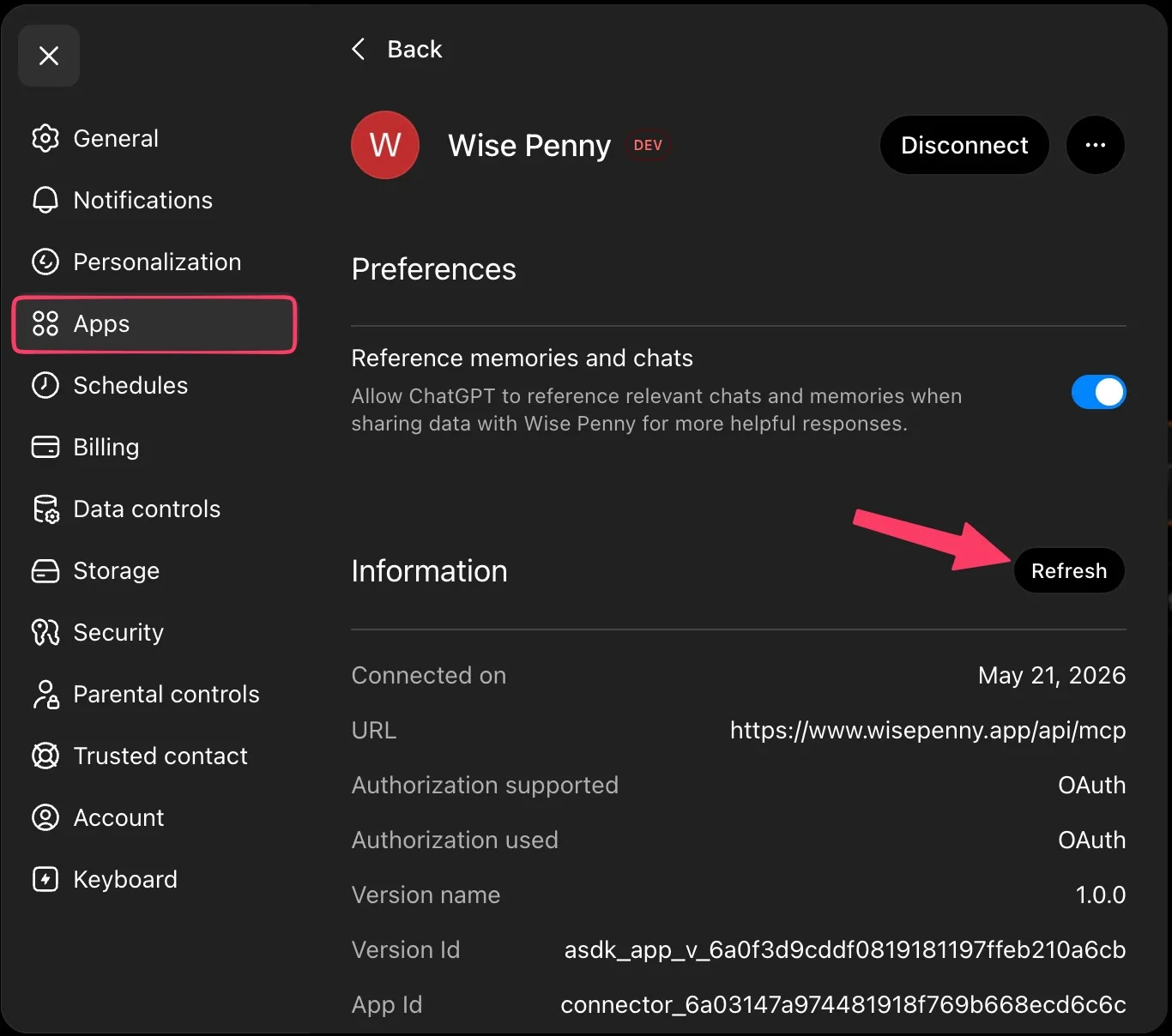
On chatgpt.com, click your profile picture in the top-right corner, select Settings, then click Apps in the left sidebar.
Open the Wise Penny app
Find Wise Penny under your connected apps and click it to open its detail page.
Click Refresh
In the Information section, click the Refresh button. ChatGPT re-fetches the tool list from Wise Penny and updates the app with the latest tools.
Other AI assistants
Wise Penny works with any assistant that supports remote MCP connectors. The exact wording differs from app to app, but the idea is the same: open the Wise Penny connector's settings and look for a refresh option — often behind a three-dot or gear menu, and labeled something like Refresh, Reload tools, or Sync. If your assistant has its own connector documentation, that's the place to check for the precise steps.
Can't find a refresh option? Disconnect and reconnect.
Removing the Wise Penny connector and adding it again always rebuilds the tool list from scratch. You'll need the Wise Penny MCP server URL:
https://www.wisepenny.app/api/mcp
Re-adding the connector follows the same flow as first-time setup — see Connect Claude or Connect ChatGPT. Your data and circles are unaffected; you'll just re-authorize access.