 Wise Penny
 Wise PennySign in
Connect Claude
Add Wise Penny as a Connector in Claude so it can analyze your spending, spot patterns, and answer questions about your finances.
Before you start
- You need a Wise Penny account with at least one bank account connected.
- You need a Claude account. Claude's Free plan includes one custom connector, so you can try this without a paid subscription. Paid accounts can add multiple connectors.
- Use desktop — Claude's mobile apps can't add custom connectors.
Open Connectors settings
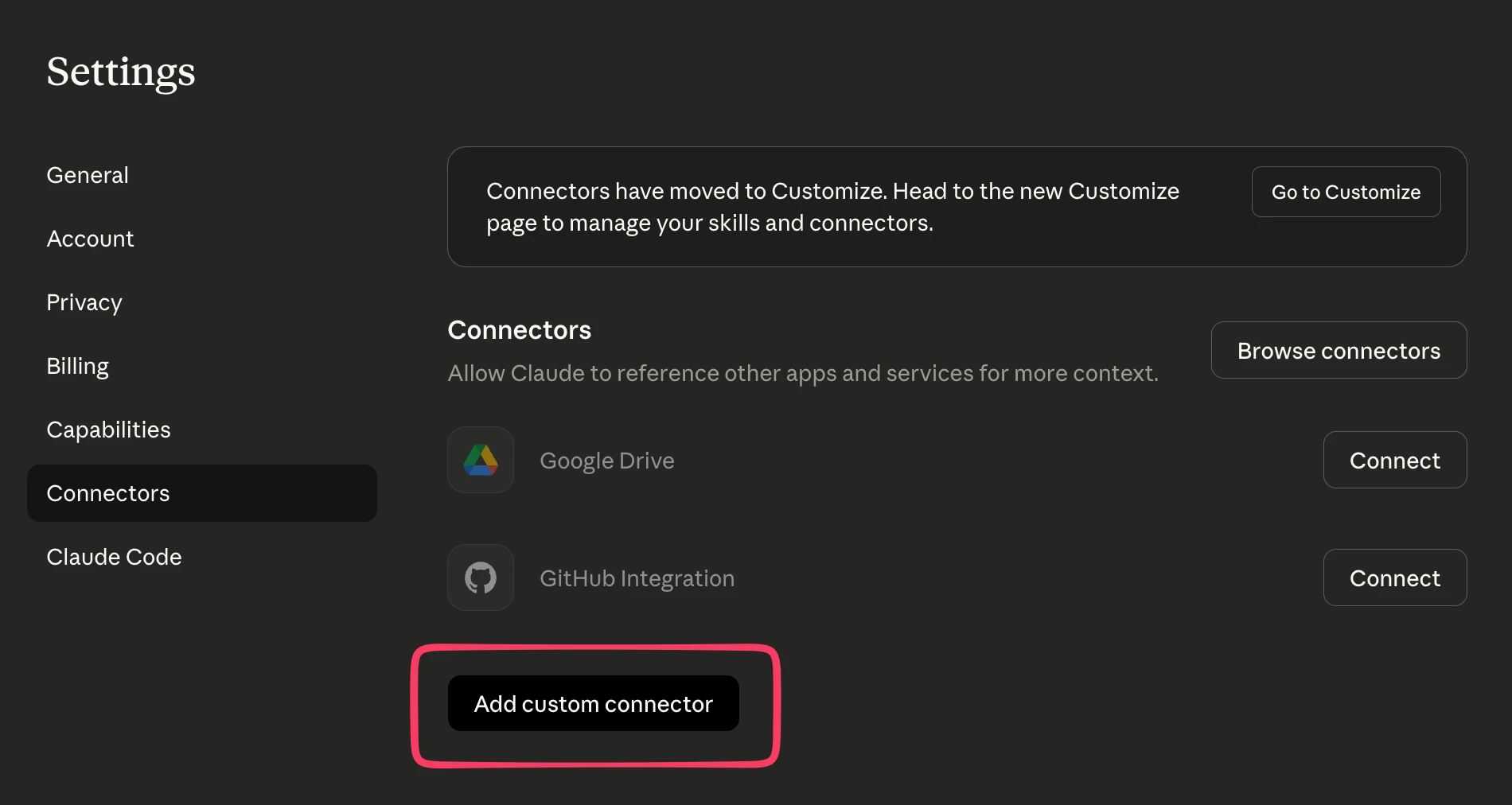
Go to claude.ai/settings/connectors, or open claude.ai and navigate to Settings → Connectors. Then click Add custom connector at the bottom.
Enter the Wise Penny server details
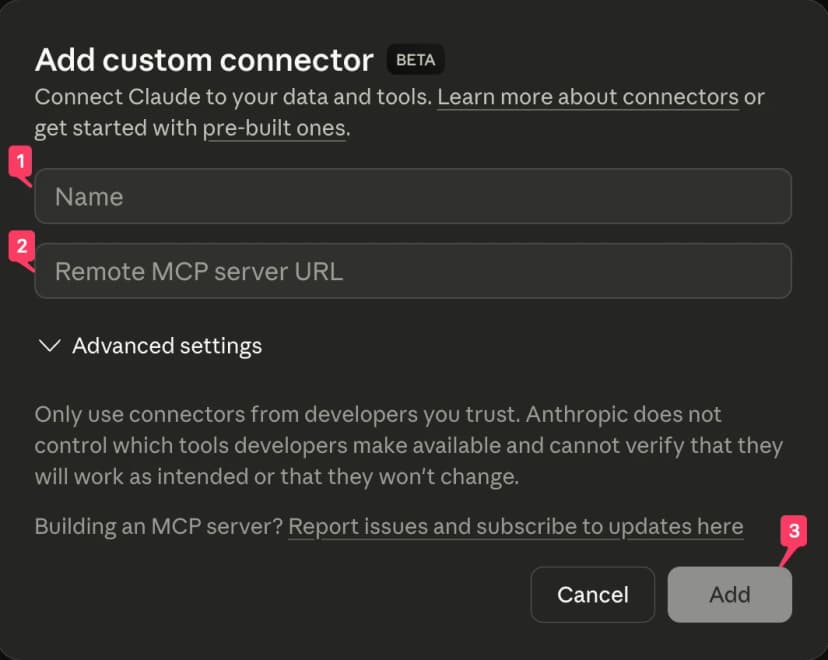
In the dialog that appears, enter:
- Name: Wise Penny
- Remote MCP server URL:
https://www.wisepenny.app/api/mcp
Leave the Advanced settings empty. Then click Add.
Connect the connector
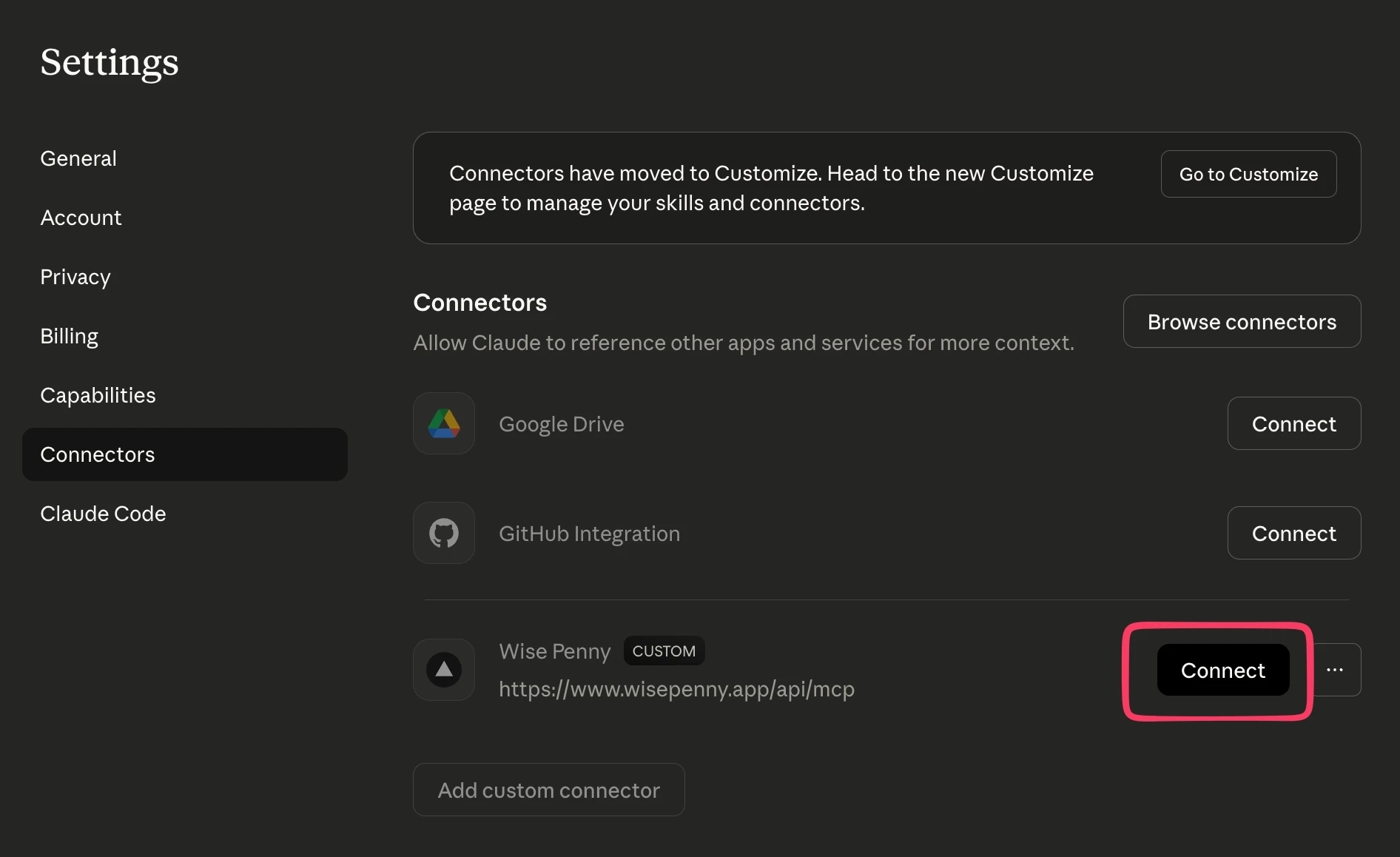
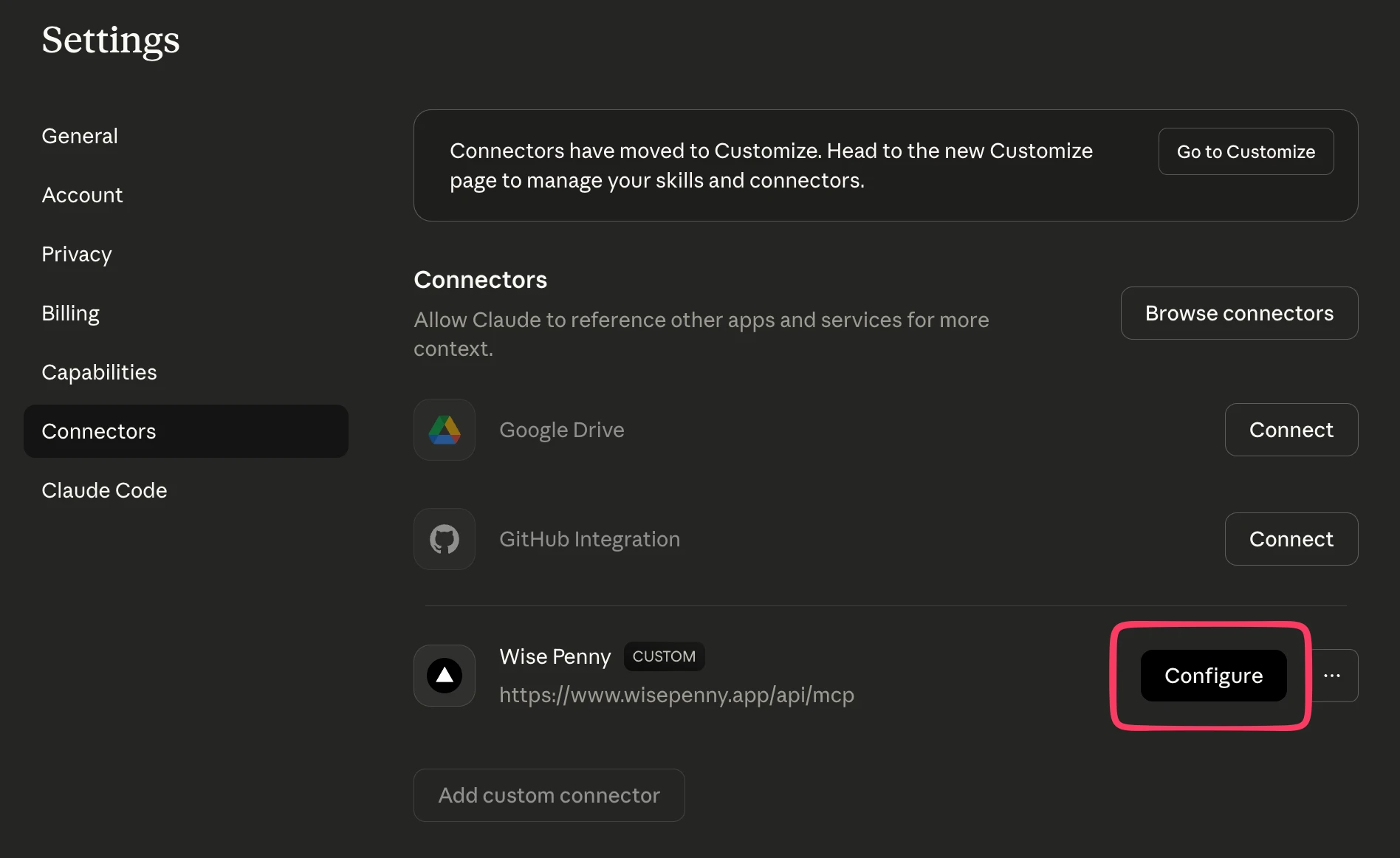
Wise Penny will appear in your Connectors list with a Custom badge. Click Connect to start the authorization flow.
Authorize access
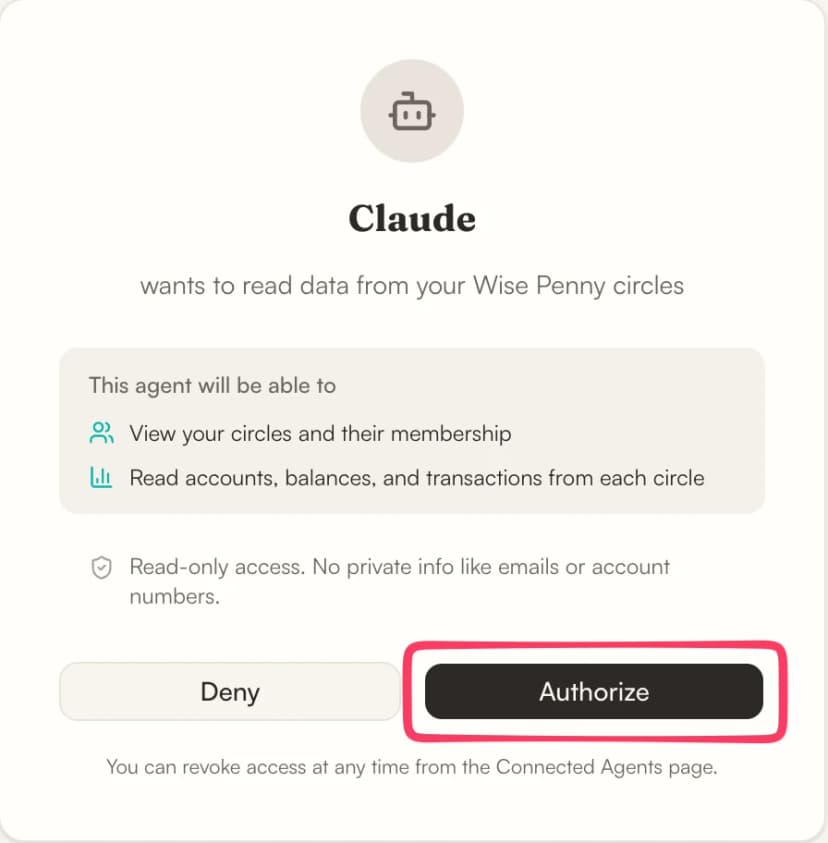
A Wise Penny authorization page will open in your browser. Review the permissions and click Authorize to grant Claude read-only access to your circles.
You can revoke access any time from your AI Apps page.
Confirm the connection
After authorizing, you'll be taken back to Claude. The connector button changes from Connect to Configure — this means Wise Penny is connected. Click Configure to set tool permissions.
Set tool permissions
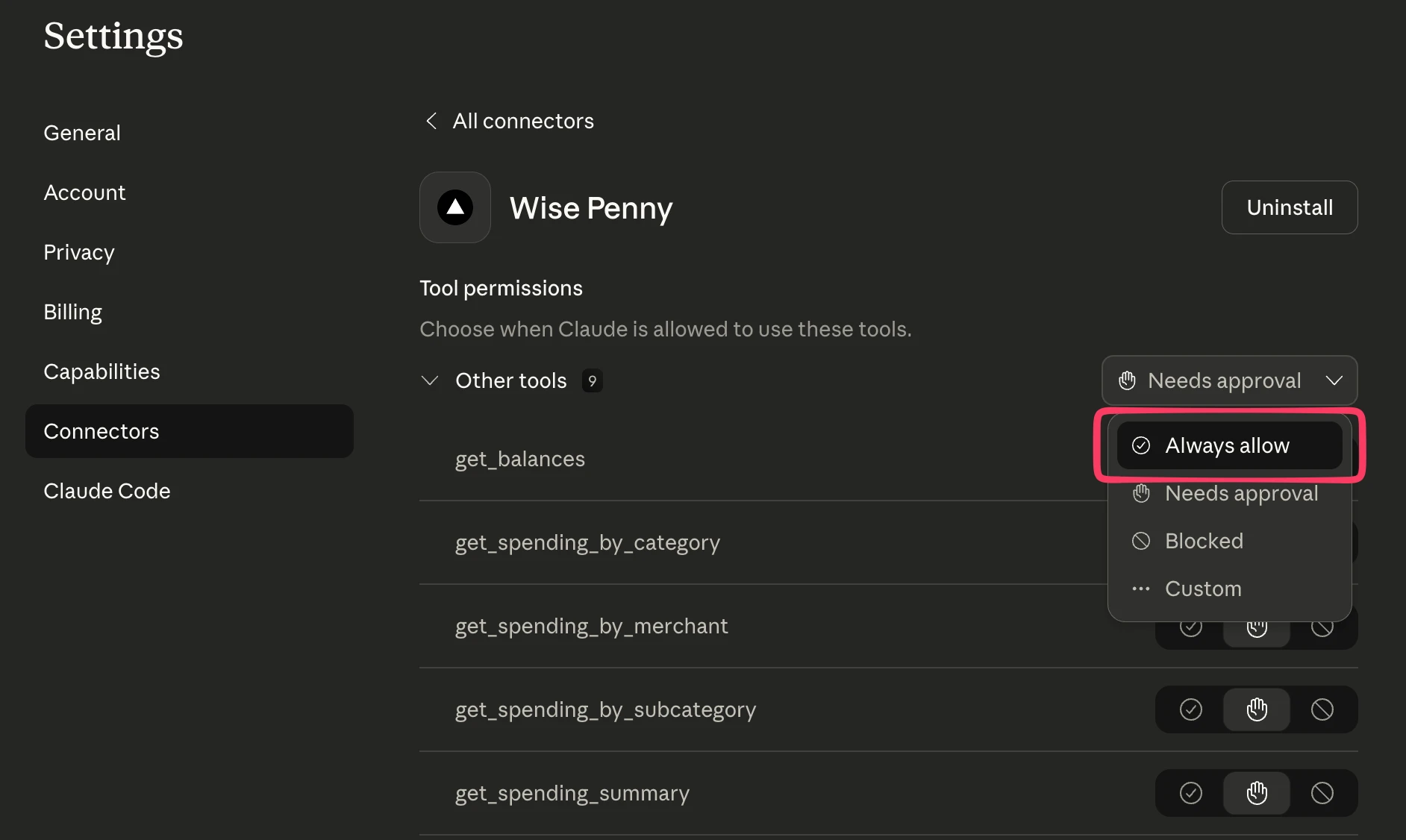
We recommend setting the tools to Always allow so Claude can access your financial data without asking for permission each time.
Start asking questions
You're all set. Start a new chat and try something like:
or you can let Claude help you explore:
Try our guided workflows — pre-configured workflows that let Claude organize your finances, run a monthly analysis, and more.