 Wise Penny
 Wise PennySign in
Automated spend monitoring
With AI, you can have your assistant keep an eye on your money for you — just tell it, in plain language, what matters to you and when to speak up.
Done through your assistant. This isn’t something you set up inside the Wise Penny app yet — you ask your connected AI assistant to do it for you. The app shows the result (for example, an “Edited” or “Split” mark on a transaction); the examples below show what to ask.
Why this works
Claude and ChatGPT both support scheduled tasks — prompts that run on a cadence you pick and message you with the result. Pair that with your Wise Penny connector (Claude / ChatGPT) and you have a small, personal financial watchdog that only pings when there's something worth your attention.
What to monitor
Pick one or two to start. Each prompt is a complete scheduled task — copy it, paste it into Claude or ChatGPT, and set the cadence shown. The dollar amounts, percentages, and category lists are defaults to make the prompts concrete — edit them to match your accounts, your lifestyle, and what you actually want to hear about.
Weekly category review
A category-level read on the week, with extra attention to discretionary categories where spending tends to drift quietly.
Summarize my spending over the last 7 days. Show me:
- the top 10 spending categories this week with $ totals
- for each, the change vs. the trailing 3-week average for that category (as $ and %)
- a separate callout on discretionary categories — restaurants, coffee, shopping, entertainment, travel, rideshare, delivery — flagging any that ran more than 25% above their trailing 3-week average

Lead with a one-sentence headline about the week. If everything is in line with my normal, keep the rest brief.
Subscription & recurring-charge change report
Recurring charges drift quietly — new subscriptions sneak in, prices creep up, old ones stop showing up. This catches the changes without spamming you about the steady ones.
Look at my recurring charges over the last 30 days vs. the prior 30 days. Flag anything that:
- appeared for the first time this period
- stopped appearing (may be cancelled, paused, or moved to a different card)
- increased by more than 10% or $5
- posted twice in a single month when it normally posts once
- hit a card or account different from where it usually hits

For each, give the merchant, amount, account, and what changed. If nothing changed, just say so.
Monthly retrospective
A high-level read on how the month landed — income, spending, savings, and any categories that genuinely deviated from your recent pattern.
Summarize last month's finances at a high level:
1. total income
2. total spending
3. net savings (income minus spending)
4. how savings compares to the trailing 3-month average — up, down, or flat, with the $ amount of the change

Then list any spending categories that were more than 25% or $200 different from their trailing 3-month average, and briefly explain what drove the change if you can tell from the transactions. Don't enumerate routine categories — only flag what actually moved.
Balance threshold alerts
Only hear from your assistant when a depository account dips below a floor you care about, or a credit card balance crosses a ceiling.
Check the current balances on all my accounts. Flag anything that crosses these thresholds:
- any checking or savings account with a balance below $1,000
- any credit card with a current balance above $2,000

For each, give the account name, the current balance, and how far past the threshold it is. If nothing is crossed, just reply "all balances within thresholds."
Schedule a task in Claude
Claude's scheduled tasks live in the Claude desktop app. They run on your machine, so your computer needs to be awake when the task is scheduled to fire (there's a Keep awake toggle on the Scheduled page if you want Claude to prevent sleep). Make sure your Wise Penny connector is set up inside the desktop app — same flow as the Connect Claude guide, just from the desktop app's settings.
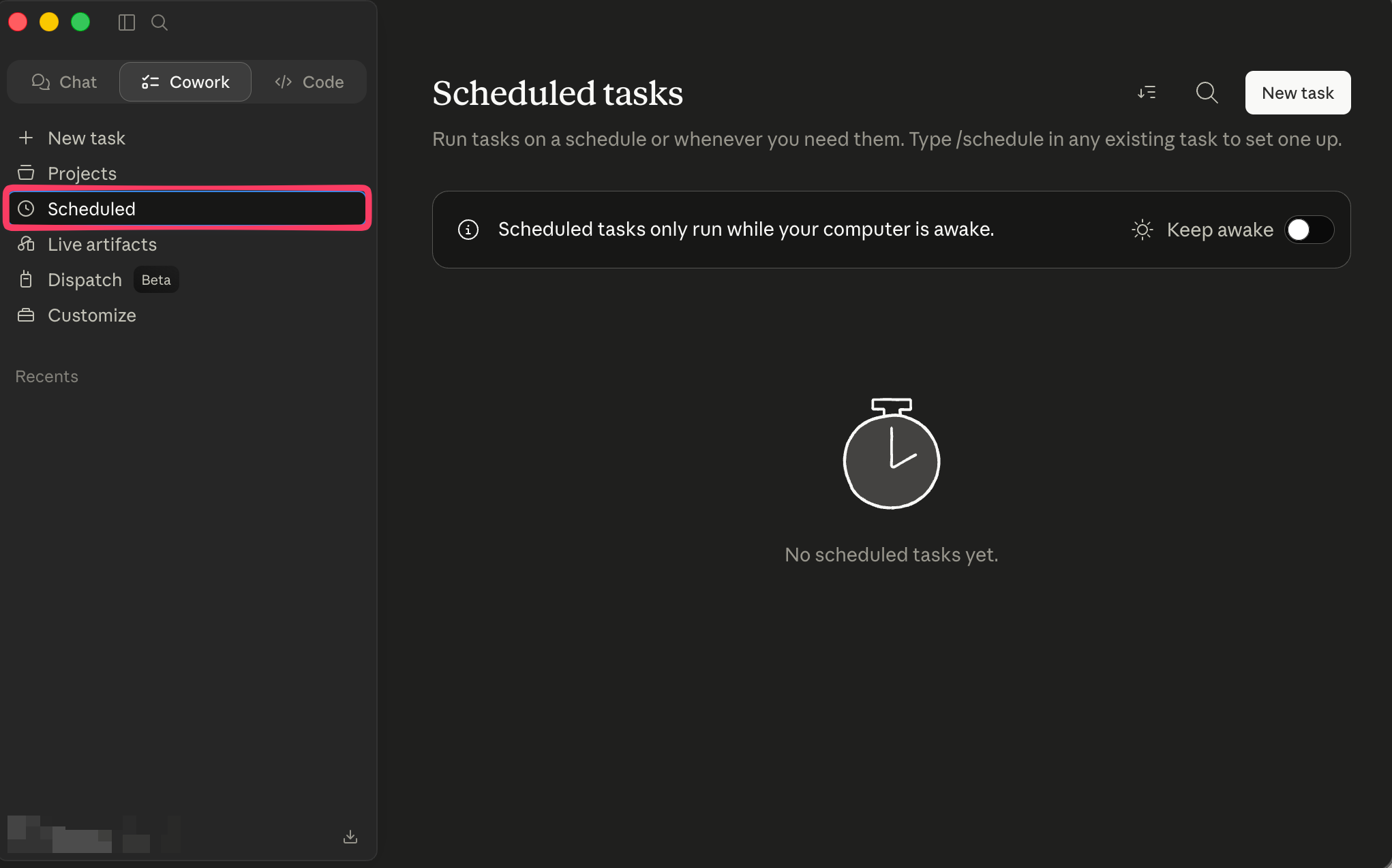
Open the Scheduled tasks list
In the Claude desktop app sidebar, switch to Cowork and select Scheduled. Click New task in the top right to open the create dialog.
Shortcut: inside any existing chat or task, type /schedule to jump straight into scheduling.
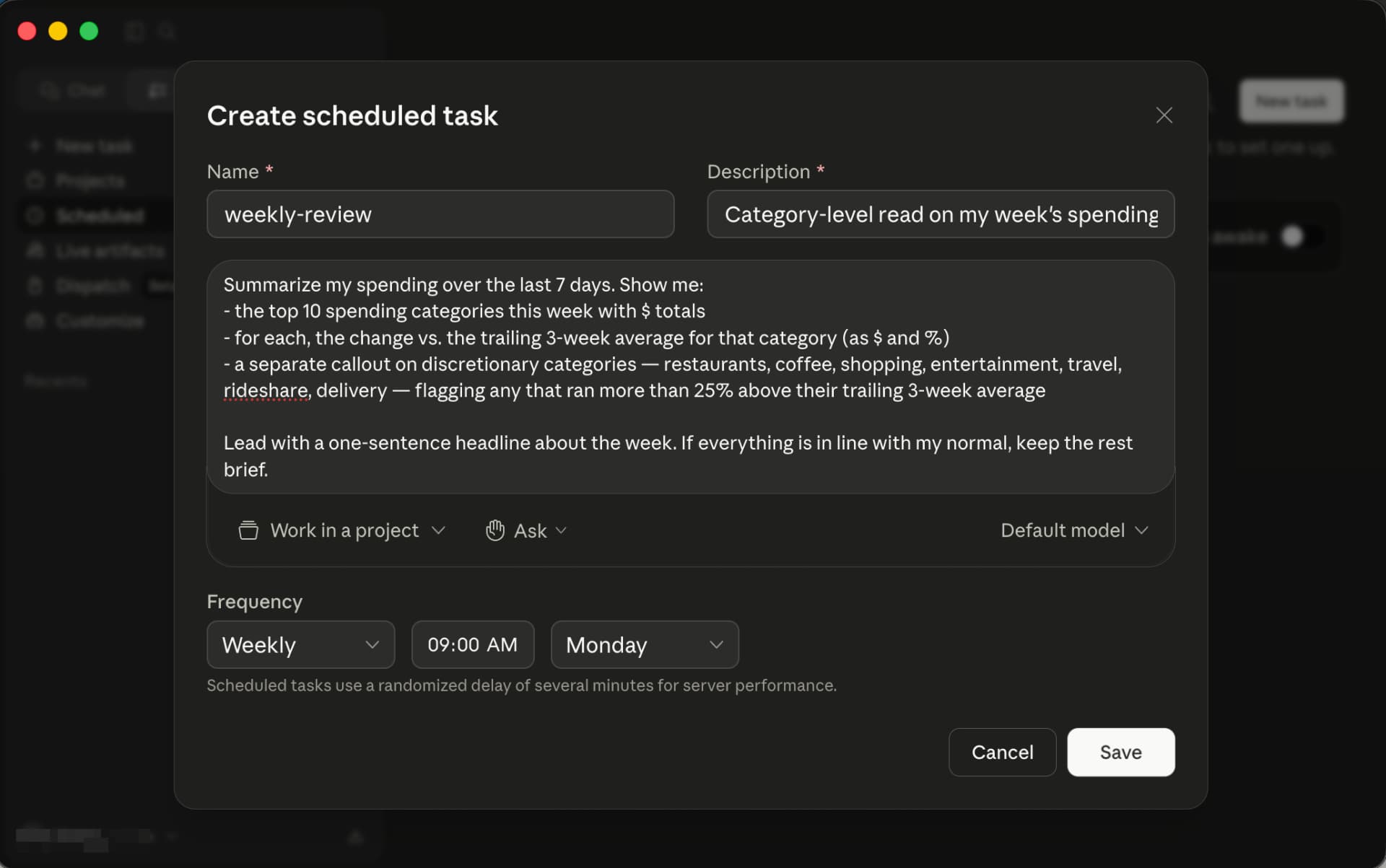
Fill in the task and save
- Name: something recognizable like weekly-review — you'll see this in your Scheduled list.
- Description: a short one-liner.
- Prompt: paste one of the prompts from above.
- Tool access (the Ask dropdown): switch to an “always allow” mode for the Wise Penny connector — otherwise the task will pause waiting for permission every time it runs.
- Frequency: set the cadence (e.g. Weekly · 09:00 AM · Monday) using the suggestion from the prompt card above.
Click Save. Your task appears in the Scheduled list and runs at the next scheduled time — Claude opens a new chat, queries Wise Penny, and surfaces the result. You can pause, edit, or delete the task from that list any time.
Schedule a task in ChatGPT
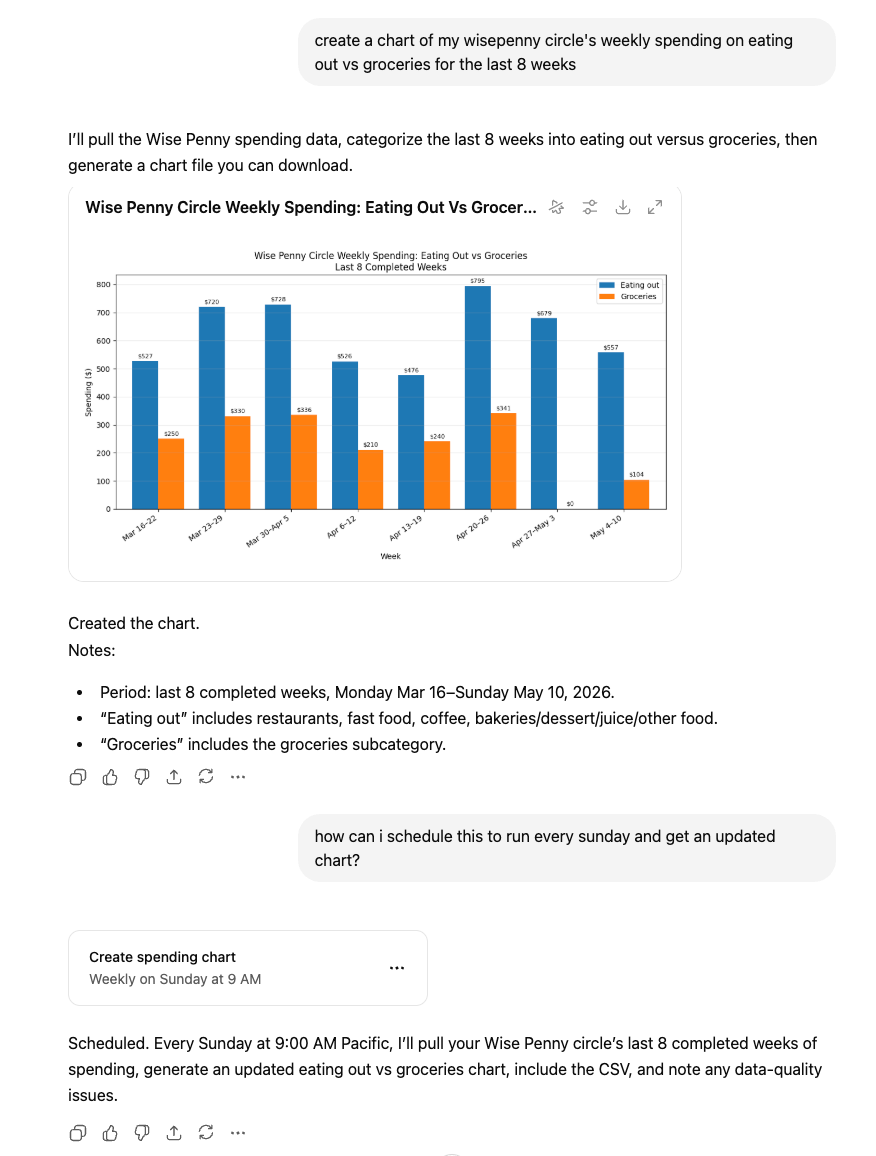
In ChatGPT there's no separate scheduling menu — you just ask. Open chatgpt.com, start a new chat with the Wise Penny connector enabled, paste one of the prompts above (or describe what you want in your own words), and once you're happy with the reply, follow up with something like:
ChatGPT creates a recurring task and confirms the cadence. The example below shows scheduling a weekly eating-out-vs-groceries chart — the same flow works for any of the prompts above. Tasks require a Plus, Pro, or Team plan, and you can review, pause, edit, or delete them later under Settings → Tasks.
Tips
- Start with one task, not all of them. The subscription change report is a good first pick — it almost always finds something. Add others once you know what you actually want to hear about.
- Tune your thresholds. The dollar amounts in these prompts are starting points. Edit them to match your normal spending pattern — a $200 charge alert is noise for some people and useful for others.
- Tell it to stay quiet. Each prompt has a “just say nothing happened” fallback so you only get pinged when there's something to look at. Without that, scheduled tasks can become daily noise.
- Review monthly. Once a month, glance at your scheduled tasks and delete the ones you're ignoring. A task you skim past is worse than no task.
- Ask the AI what else it should monitor. Your assistant has seen your accounts — it has opinions. Try “based on my spending patterns, what other recurring reports or alerts would be worth scheduling?” and pick the suggestions that resonate.